
X-remo retains the ease of use and basic operational feel developed in Z-remo, while enabling more advanced customization. This section explains two migration methods: using the connection assistant and using a setup file.
Migration Using the Connection Assistant
When registering an API profile (see: Used with the Web API), if a REGZA device is detected on the network, “REGZA V2 or REGZA Legacy” will appear on the right side of the API profile, as shown in the figure below.

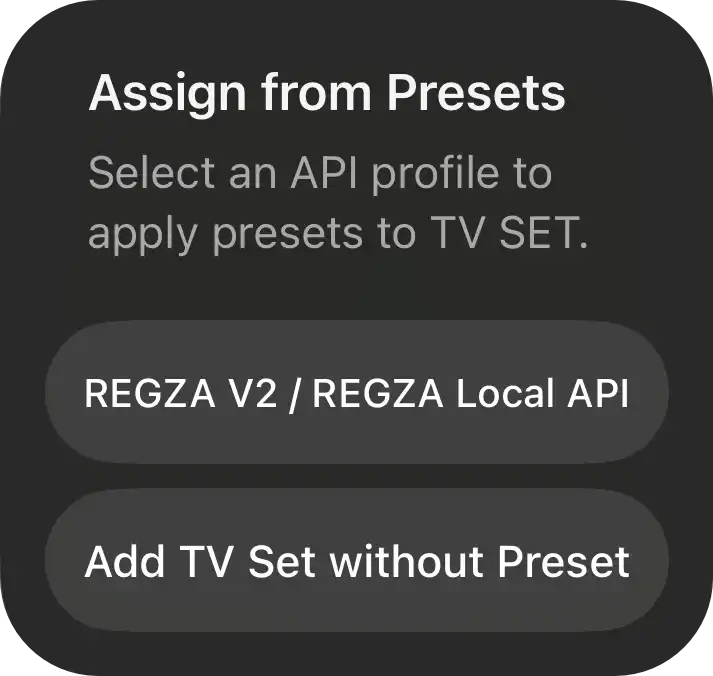
In this state, when you add a “TV Set” under Add Unit, a prompt will appear asking whether you want to assign presets using the REGZA-compatible API profile. If you tap “Yes,” a remote control set with all functions configured automatically will be deployed.
Migration Using a Setup File
We provide setup files that allow you to carry over Z-remo functionality, as well as setup files for environments using a combination of Nature Remo (by Nature Inc.) and REGZA (by Toshiba Corporation or TVS REGZA Corporation). You can use them by downloading and importing the appropriate file.
How to Import a Setup File
- Download either the REGZA LINK version or the Nature Remo + REGZA version of the setup file, and save it in the Files app on your smartphone.
- REGZA LINK version
- Z-remo Legacy (for REGZA LINK)
Operation requires a REGZA series TV by Toshiba Corporation or TVS REGZA Corporation connected to the local network (verified model: Z720X). - Nature Remo + REGZA version (infrared control)
- Nature Remo + REGZA Z720X
Operation requires a Nature Remo compatible with the Nature Remo Local API, as well as a REGZA series TV by Toshiba Corporation or TVS REGZA Corporation connected to the local network (verified model: Z720X).
- Tap the downloaded file in the Files app. If an X-remo button appears at the bottom of the screen, tap it. If not, tap the share button and choose X-remo to open the file.
- X-remo will launch and import the data.
- From the X-remo settings, tap the imported API profile.
- You can then use it by changing the Base URL (http://192.168.1.10:80 or the http://remo.local part) to match your own environment. If you are unfamiliar with your network environment, please refrain from using this feature.
Notes
- For the free version of X-remo, importing a setup file is limited to replacing an existing set only. In addition, if an API profile already exists, any API profile included in the exported data will not be imported./li>
- Testing of key information transmission for Z-remo Legacy (for REGZA LINK) has been conducted solely in an emulated environment. Operation with an actual TV has not been verified.
- This feature is provided and used at the user’s own risk and responsibility. The developer shall not be liable for any direct, indirect, incidental, consequential, or special damages arising out of or in connection with the use of, or inability to use, this feature, including, without limitation, device malfunction, changes to settings, communication failures, data loss, or disputes with third parties. Users are responsible for confirming the compatibility of their devices, network environment, and configuration settings before use, and should exercise due caution when using this feature.