
What is Web API
Web API (Web Application Programming Interface) is a mechanism that enables the sharing of functions and data between different programs and systems via the internet or local network. Using specifications published by manufacturers, you can operate devices that are not compatible with HomeKit. For example, X-remo can integrate features such as Nature Remo’s infrared signals or REGZA’s volume and channel controls.
What Can It Do?
- * Functionality is limited to compatible TV models.
Requirements
- iPhone / iPad with X-remo installed
- Devices compatible with Web API (e.g., Nature Remo, REGZA)
Setup Procedure
Registering API Profiles
- An API Profile contains the fundamental information required to access a specific API. By assigning this profile within a button action (as described below), you can easily manage and modify connection details for multiple services in one place.
- Some televisions now support automatic profile setup using a “Setup Helper” feature (Note: As of Version 1.2.0, this function is limited exclusively to REGZA manufactured by Toshiba Corporation or TVS REGZA Corporation).
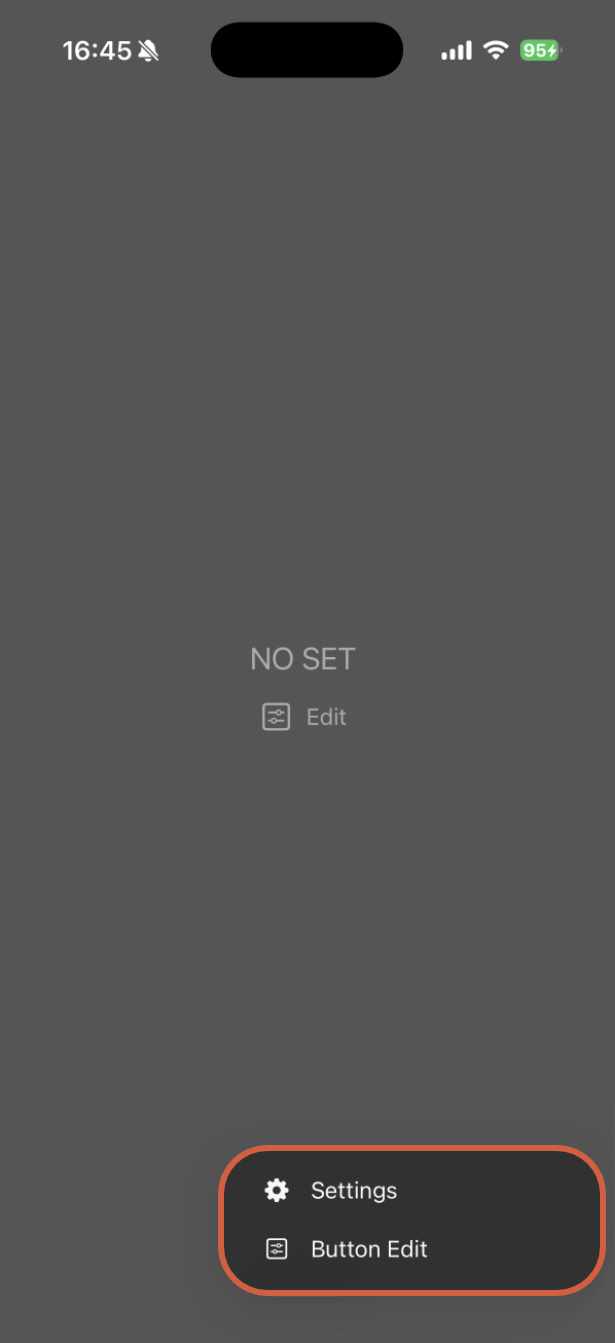
Long press  icon, then tap “Settings”
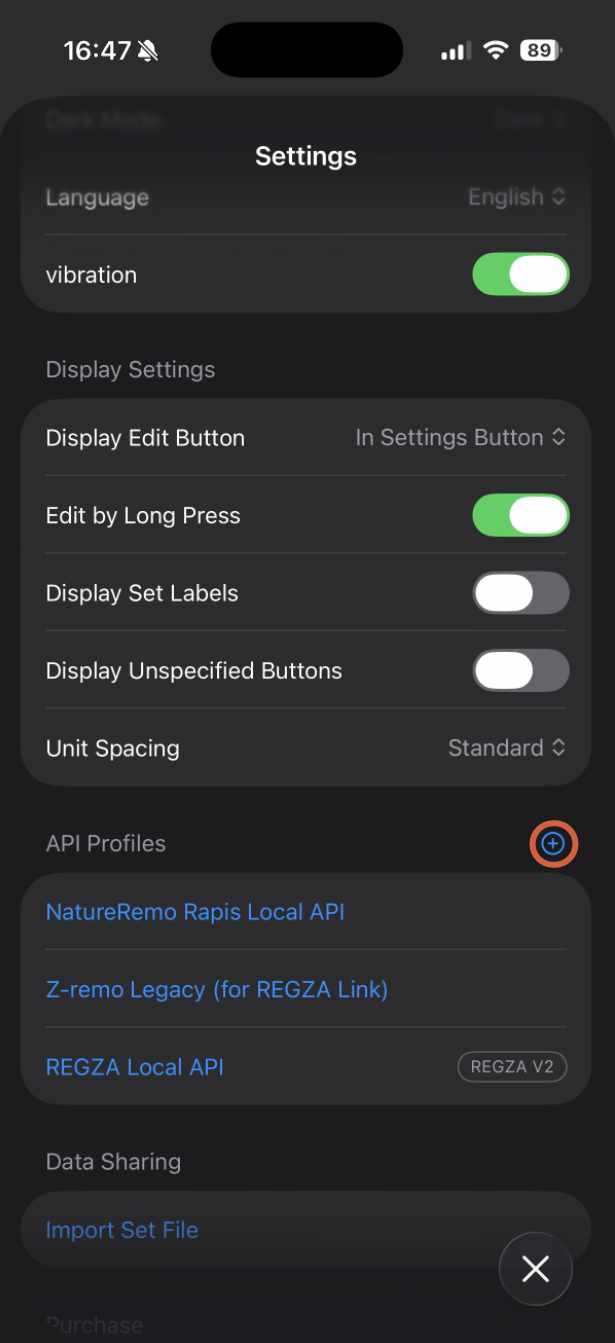
Tap the (+) button next to API Profiles.
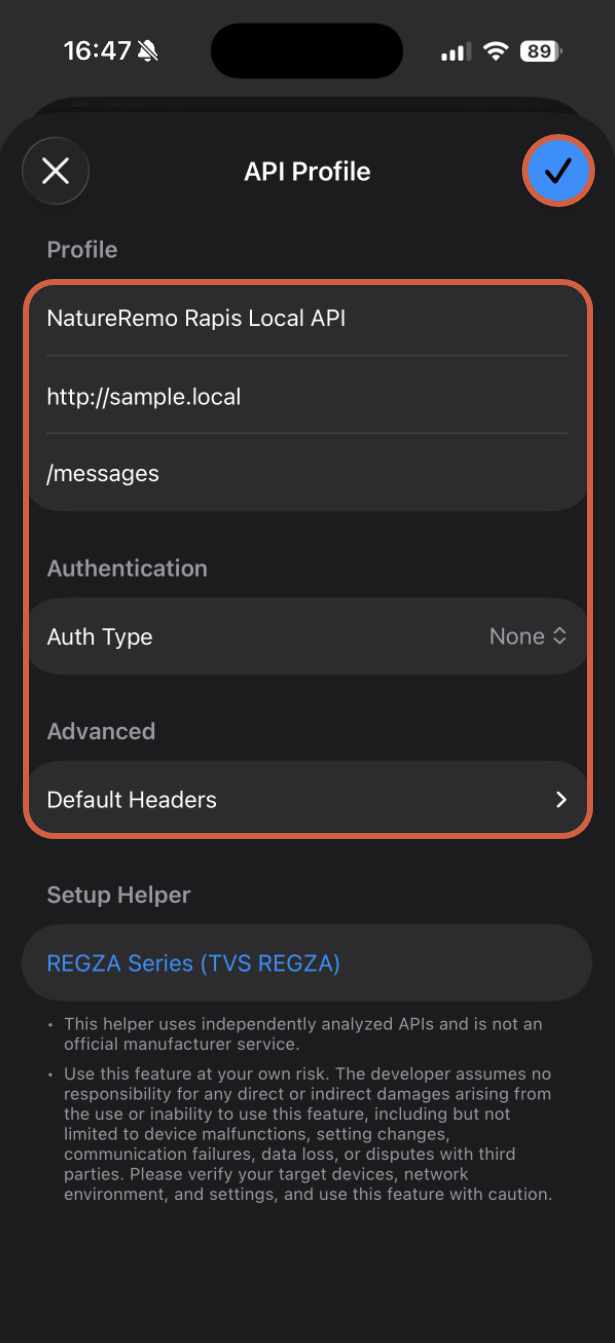
Enter the API Profile Name and Base URL. Fill in necessary details such as default paths, authentication methods, etc., then tap the Confirm button.
Registering Button Actions
Long press icon, then tap “Edit Button.”
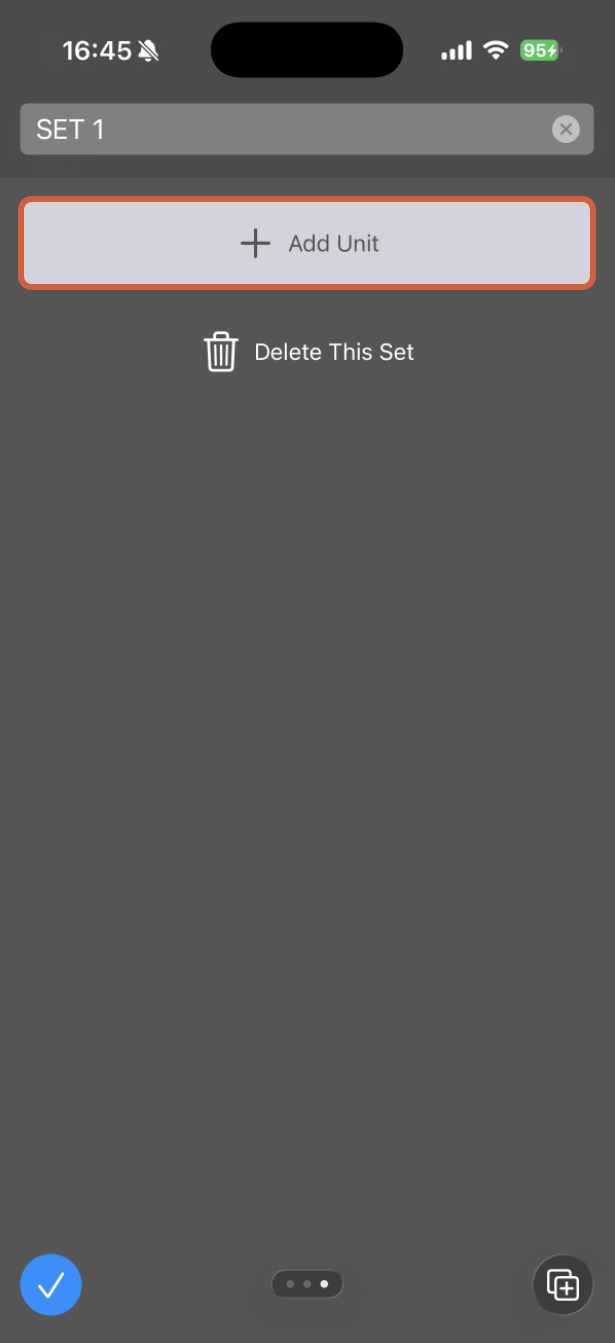
Tap “Add Unit”
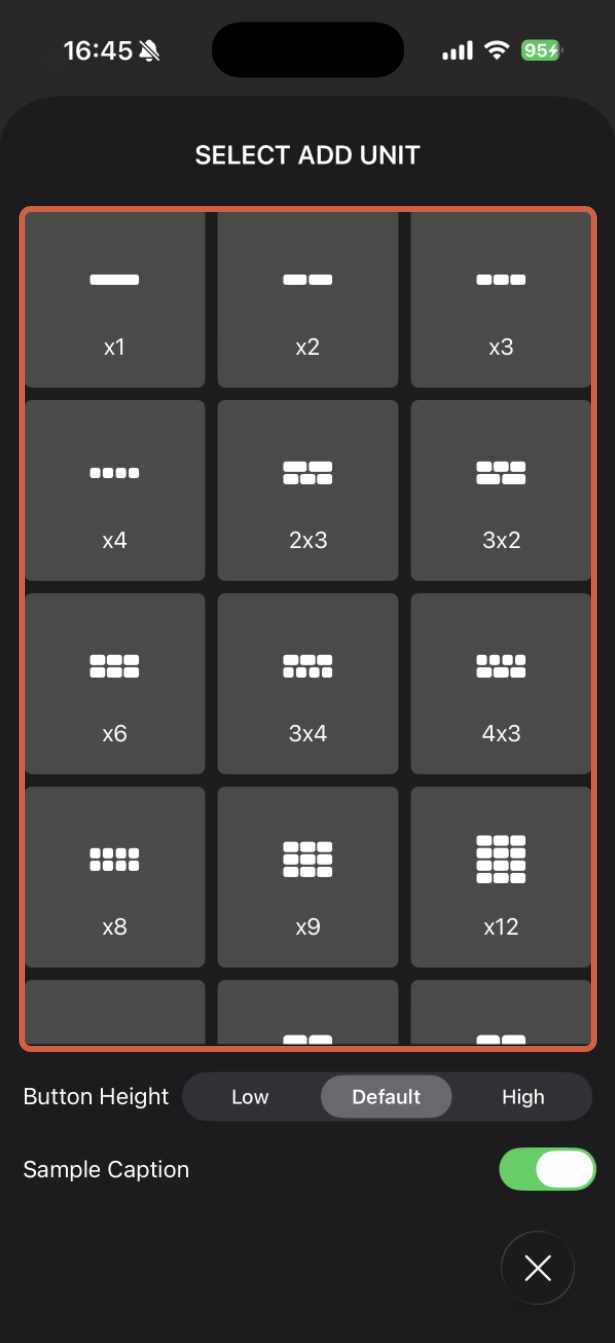
Select the button unit you wish to add.
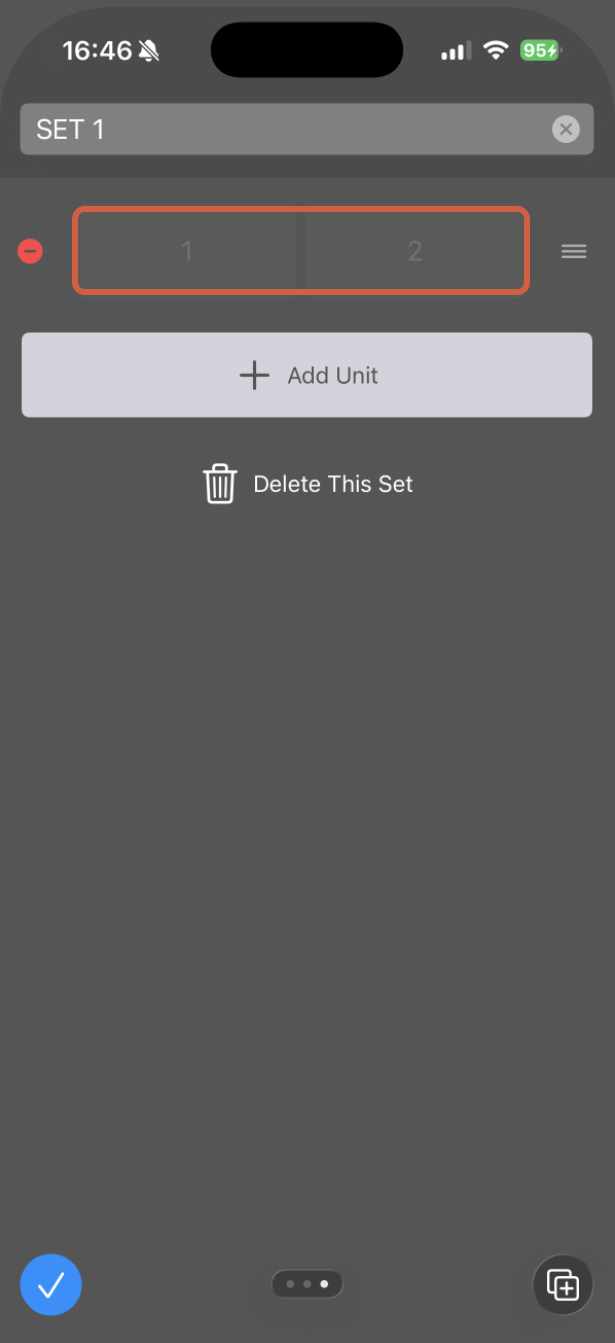
Tap the specific button on the placed/selected unit that you want to configure.
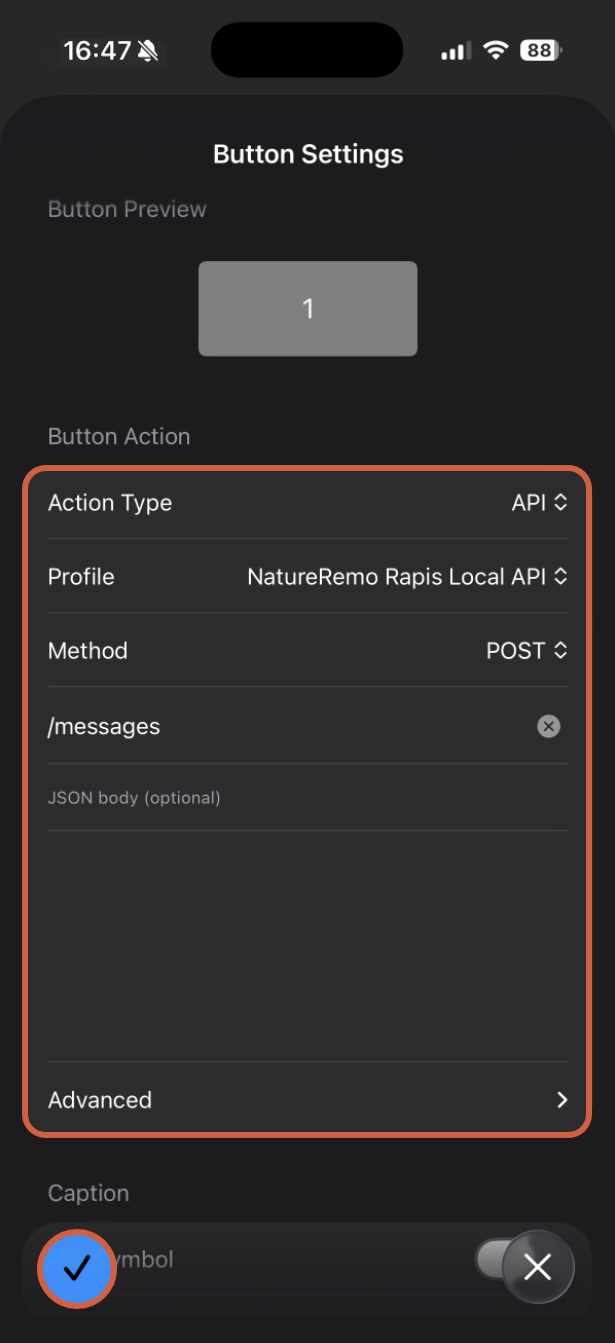
Select “API” as the action type, then enter the required profile, method, path, etc., and tap to confirm.
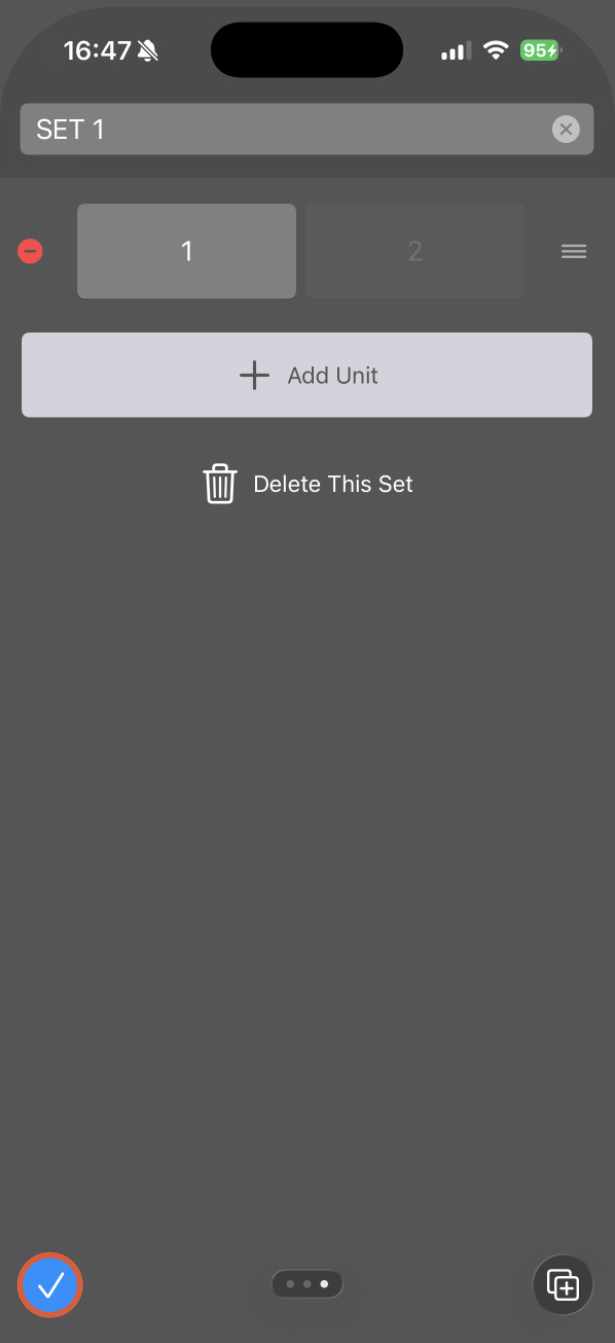
Tap the confirmation icon to complete the setup.
- In some API profiles, the “Assign from Preset” option becomes available when selecting a profile, and methods and paths are automatically populated (when using APIs for REGZA products manufactured by Toshiba Corporation or TVS REGZA Corporation).